How to Get Captions on AniWatch: Easy Subtitle Fixes
Trying to watch your favorite anime, but the subtitles are missing? Whether the English captions won’t appear, the CC button seems broken, or the text disappears halfway through an episode, the problem can quickly ruin your viewing experience. The good news is that a few simple checks may help you fix it without wasting time on random settings. In this guide, you’ll learn how to get captions on AniWatch, enable available subtitle tracks, change languages, and troubleshoot common problems on mobile, desktop, and TV. Follow the steps in order to identify the issue and get back to watching.
Have you started watching an anime episode on AniWatch only to discover that the subtitles are missing? Whether you cannot find the English captions, the CC button is not responding, or the text disappears during playback, the problem can make following your favorite series frustrating.
The good news is that several simple checks can help you identify the cause. In this guide, you will learn how to get captions on AniWatch, enable available subtitle tracks, change languages, troubleshoot common playback problems, and understand what to do when an episode does not have subtitles.
The exact controls may vary depending on the video player, device, and streaming source you are using.
1. How to Get Captions on AniWatch: Quick Step-by-Step Guide
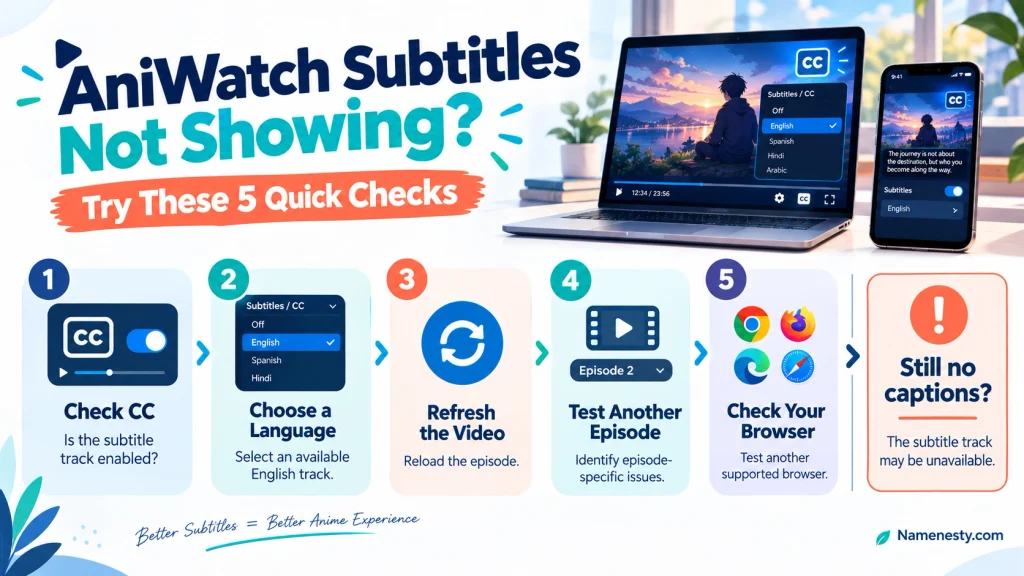
The fastest way to get captions on AniWatch is to check the video player’s subtitle settings first. If subtitles are available for your selected episode and source, enabling the correct track may solve the problem immediately.
Follow these steps:
- Open the anime episode you want to watch.
- Start playback and tap or click the video to display the controls.
- Look for a CC button, speech-bubble icon, or settings gear.
- Open the subtitle or captions menu.
- Select English or another available language instead of Off.
- Wait a few seconds for the text to appear.
- If captions remain missing, pause the video, reload the episode, and check the settings again.
If the subtitle menu is empty or unavailable, the issue may not be a disabled setting. The selected video source may lack a working subtitle track, or the episode may not include the translation you need.
Quick tip: Test another episode from the same series. If subtitles work elsewhere, the problem may be specific to the original episode or its video source.
2. How to Turn On English Subtitles on AniWatch
English subtitles allow you to follow Japanese dialogue while keeping the original voice performances. However, the subtitle control may look different depending on the player.
To turn them on:
- Start the episode in your browser.
- Move your mouse over the video or tap the screen.
- Find the CC or subtitle control.
- Open the list of available tracks.
- Select English, English Sub, or the closest available option.
- Return to playback and check whether the dialogue is being translated.
Some players display multiple English options. If one track is blank, return to the menu and try another clearly labeled English track.
If the player offers only Off or no language options, repeatedly clicking the CC button will not create a subtitle file that is missing from the stream.
Also, remember that translated dialogue and translations of signs or background text may be provided through separate tracks. Choosing a different available track can sometimes make a difference.
3. How to Change Subtitle Languages on AniWatch
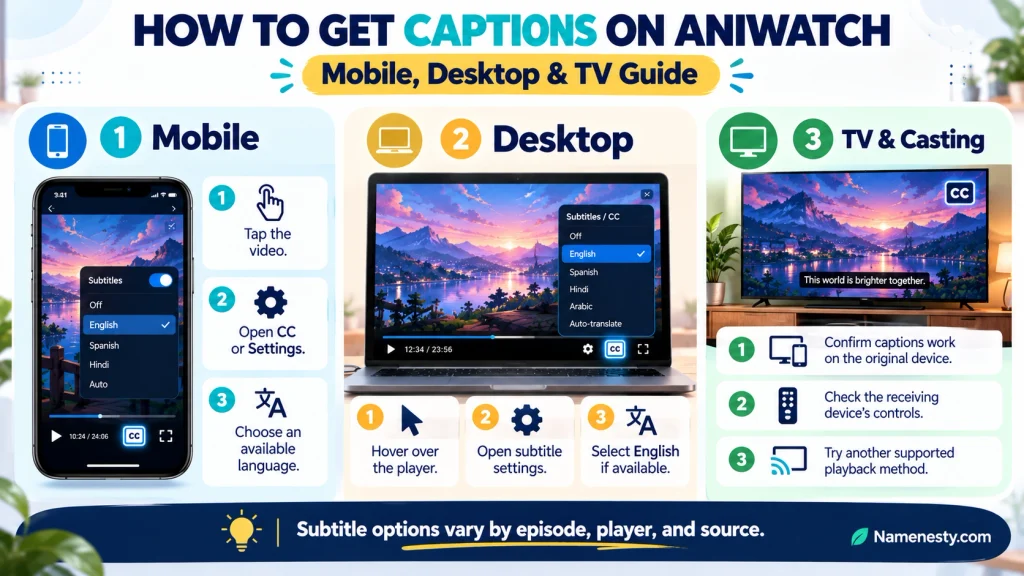
If English is not your preferred language, check whether the player offers another subtitle track.
The process is generally straightforward:
- Start the episode.
- Open the player settings or CC menu.
- Look for Subtitles, Language, or a similar label.
- Review the languages listed.
- Select your preferred language.
- Resume playback and confirm that the text appears correctly.
What if your language is missing?
A subtitle menu can display only the tracks supplied by the player or video source. If your preferred language is unavailable, you may need to check whether another legitimate source offers that episode with the required subtitles.
Do not assume that every anime has subtitles in every language. Availability can differ between episodes, releases, and providers.
If the language selection resets when you open the next episode, check the new episode’s settings again. Some players do not preserve subtitle preferences across every stream.
4. How to Fix AniWatch Subtitles Not Showing
When AniWatch subtitles are not showing, identify whether the problem affects one episode or everything you watch. This distinction helps you avoid unnecessary troubleshooting.
| What you see | Possible cause | What to try |
| CC is switched off | Subtitles are disabled | Select an available language |
| Subtitle menu is empty | No track is available or loading | Reload and test another episode |
| Video plays without translated dialogue | Wrong track or missing subtitle file | Select another track or source |
| Captions appear after a delay | Loading or connection issue | Wait briefly, then seek back a few seconds |
| Subtitles disappear in full screen | Player display problem | Exit full screen and re-enable captions |
| Only one episode has the problem | Episode-specific issue | Test another episode |
| Subtitles fail in every episode | Browser, player, or service issue | Test another browser and check site data |
Try these fixes in order
First, reselect the subtitle track. Turn captions off, wait briefly, and select the desired language again.
- Explore More: https://namenesty.com/cheating-captions/
Second, reload the episode. A refresh can help if the player did not load its subtitle track correctly.
Third, test another episode. This helps determine whether the problem is limited to one video.
Fourth, check the browser. If the issue persists across multiple episodes, try a current, supported browser and temporarily test whether an extension is interfering.
Finally, wait and retry. A temporary service or source problem may resolve without further changes.
Community reports about AniWatch subtitle problems also suggest that availability can vary by episode, and that refreshing or changing playback sources does not always work. See
5. How to Get Captions on AniWatch on Mobile
Watching anime on a phone can make subtitle controls harder to find, particularly when the player is in portrait mode.
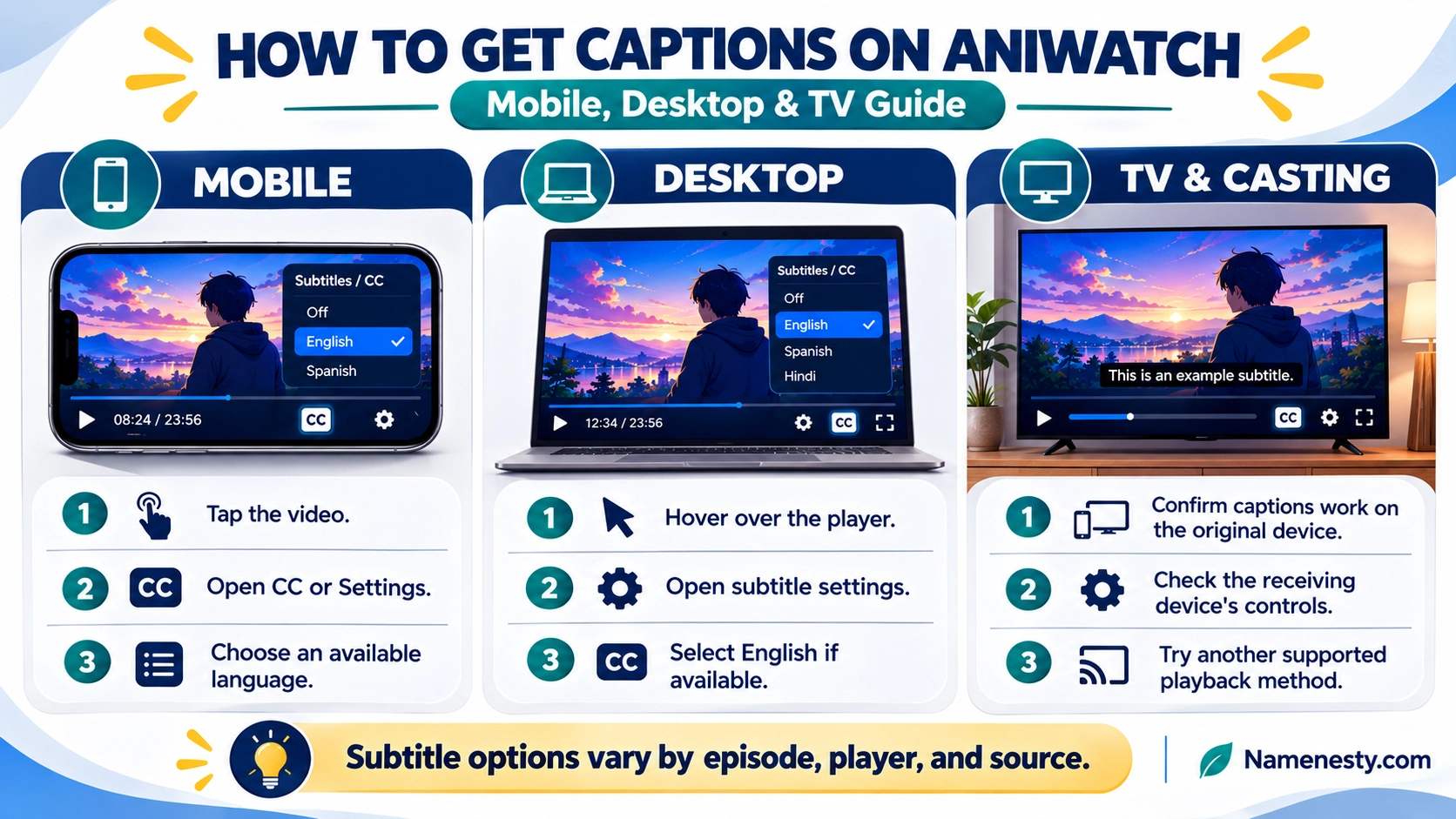
Use these steps on your mobile browser:
- Open the episode and start playback.
- Tap the video once to reveal its controls.
- Look for CC, the subtitle icon, or the settings menu.
- Select the available language.
- If the controls are hidden, rotate your phone to landscape mode and check again.
- If captions still do not appear, exit full screen, reload the page, and repeat the steps.
Android troubleshooting
On Android, check the player controls before changing your phone’s system settings. If subtitles fail across multiple episodes, try opening the page in another supported browser.
You can also clear the affected website’s cached data if ordinary refreshing does not help. Be aware that clearing cookies or site data may sign you out of websites.
iPhone and iPad troubleshooting
On iOS and iPadOS, try enabling subtitles before entering full-screen playback. If the text disappears after rotating the device, exit full screen and reselect the subtitle track.
If captions work on your device but disappear when you send the video to a television, follow the casting guidance in Section 13.
6. How to Enable AniWatch Subtitles on a PC or Laptop
A desktop browser gives you more room to inspect the player controls, making it easier to identify the subtitle setting.
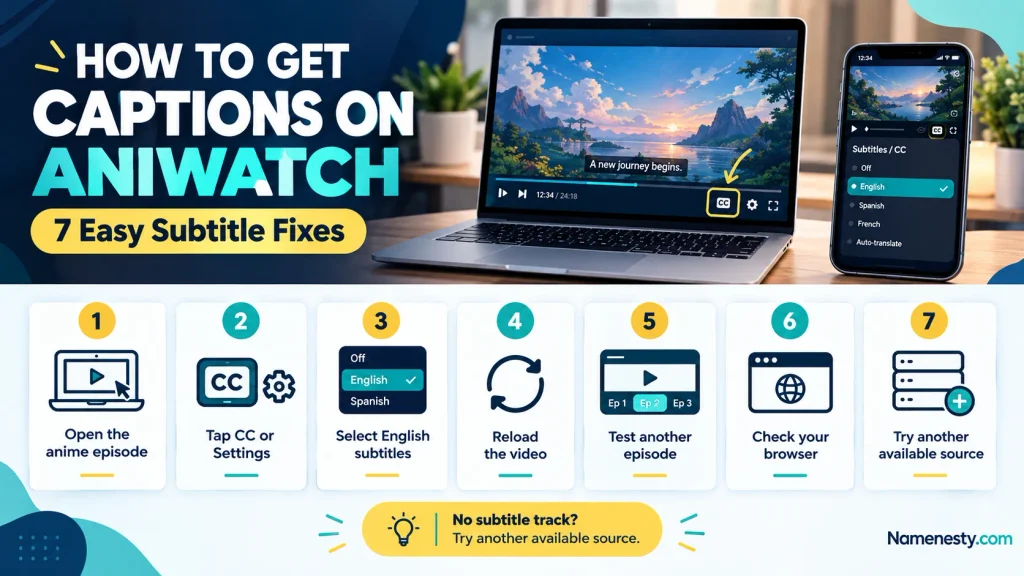
- Open the episode in your browser.
- Move your mouse over the video.
- Click the CC icon or settings gear.
- Open the subtitle menu.
- Select the language you want.
- Resume playback and confirm that the text appears.
If the video is playing but the subtitle menu is empty, reload the page and test another episode.
Check browser extensions
Some extensions can interfere with website scripts or media resources. To investigate, try a different supported browser or temporarily disable a specific extension for testing, where safe and permitted.
Do not disable your browser’s overall security protections or install unknown extensions to force subtitles to work.
Clear cached data if necessary
If the same issue affects multiple episodes, stale cached website data may contribute to the problem.
In your browser’s privacy settings, look for the option to clear cached images and files. Start with the least disruptive option available. Clearing all cookies and browsing data is not always necessary.
7. How to Fix AniWatch Captions That Are Out of Sync
Subtitles are out of sync when the text appears too early or too late compared with the spoken dialogue.
This can happen because of differences between subtitle timing and the video release, playback interruptions, or problems with the selected source.
Try these steps:
- Pause the episode and resume playback.
- Seek backward a few seconds, then play the scene again.
- Reload the episode if the mismatch continues.
- Check whether the player provides a subtitle-delay or timing adjustment.
- If another legitimate source is available, compare the same scene there.
What if the player has no subtitle-delay setting?
You may not be able to correct the timing manually through that player. If the subtitles remain consistently early or late, the subtitle file may have been prepared for a different video version.
Avoid making repeated random timing changes. First determine whether the problem occurs throughout the episode or only after buffering or seeking.
A correctly synchronized subtitle track should match the dialogue and relevant on-screen events as closely as possible.
8. Why Are Subtitles Missing From Some AniWatch Episodes?
Sometimes the issue is not your device or browser. The episode itself may lack the subtitle track you need.
Common explanations include:
- Missing subtitle file: The selected source does not provide a compatible subtitle track.
- Incomplete release: A particular episode may not yet have the expected translation.
- Incorrect track: A track may exist but contain no translated dialogue.
- Source-specific problem: Different video sources may provide different subtitle options.
- Player loading error: The track exists but fails to load correctly.
How can you confirm the cause?
Open the same episode again and check the subtitle menu. Then test another episode from the same series.
If subtitles work in other episodes but not in the original one, that points toward an episode-specific or source-specific issue. It does not prove the exact cause, but it narrows down the possibilities.
If the problem affects every episode, investigate the browser and player instead.
The key distinction is simple: a disabled subtitle track can often be enabled, but a missing subtitle track cannot be switched on through the player alone.
9. How to Fix a Missing or Unresponsive CC Button on AniWatch
The CC button may be hidden, unavailable, or unresponsive because of the player layout, a loading problem, or the absence of selectable subtitles.
Try the following:
- Tap or click the video to reveal the controls.
- Move the pointer away and back if the controls disappear.
- Exit full screen and check the controls in normal playback mode.
- Reload the episode.
- Test another episode to see whether its subtitle controls work.
- If the problem persists, try another supported browser.
Some players show subtitle controls only when playback is active. Others use a settings gear rather than a dedicated CC button.
If the button remains missing, do not assume that you have overlooked a hidden setting. The selected player may not expose subtitles for that stream.
10. How to Fix AniWatch Subtitles That Stop Working Mid-Episode
If captions appear at the beginning of an episode but disappear later, the issue may involve the subtitle file, player state, or a section of the video without translated text.
First, determine whether the dialogue continues without subtitles or whether the entire subtitle display has stopped.
Try this troubleshooting sequence:
- Pause and resume the video.
- Seek back a few seconds to replay the affected scene.
- Open the subtitle menu and reselect the active language.
- Reload the episode if the captions do not return.
- Check the same scene using another available source, if appropriate.
If the subtitles stop at exactly the same point every time, the problem may be tied to that episode or subtitle track.
If they disappear unpredictably after buffering or seeking, playback or loading issues may be involved.
Remember that some anime intentionally leave certain dialogue or background text untranslated in a particular subtitle track. That is different from the entire subtitle track failing.
11. How to Get AniWatch Subtitles Working in Full-Screen Mode
Sometimes subtitles appear in the regular player but vanish when you switch to full screen. This may indicate a rendering or player-layout issue.
Try this sequence:
- Exit full-screen mode.
- Confirm that the subtitles are enabled.
- Play the episode until the text appears.
- Enter full screen again.
- If the text disappears, exit full screen and reload the episode.
If your browser offers a different full-screen or theater-mode option, test it to see whether the problem is limited to one viewing mode.
On mobile, landscape orientation may reveal controls that were hidden in portrait mode.
Do not change multiple unrelated device settings at once. Testing one change at a time makes it easier to identify the cause.
12. How to Troubleshoot AniWatch Subtitles in Different Browsers
Browser differences can help you determine whether a subtitle problem is specific to your current setup.
| Test | What it helps you identify |
| Reload the current page | Temporary loading problem |
| Open another episode | Episode-specific problem |
| Try another supported browser | Browser-specific problem |
| Test with a specific extension temporarily disabled | Possible extension interference |
| Clear cached images and files | Possible stale cached resources |
| Check another network, if practical | Possible connection-related issue |
A safe browser troubleshooting routine
Start by refreshing the page and checking the player settings. If that fails, test another episode and then another browser.
If you suspect an extension, change only the relevant extension setting temporarily. Keep your security and privacy protections enabled wherever possible.
Clear cached files only if simpler checks fail. Avoid downloading unofficial players, subtitle packages, or browser add-ons from untrusted sources.
If the issue occurs across different browsers and devices, it may be outside your local browser configuration. In that situation, repeated cache clearing is unlikely to solve a missing subtitle track.
13. How to Fix AniWatch Subtitle Problems When Casting to a TV
Subtitles that appear on a phone or computer may not appear on the television when casting or mirroring. The result depends on how the video and captions are transmitted and rendered.
Try the following:
- Confirm that subtitles work on the original device.
- Start playback before connecting to the television.
- Check whether the casting method supports the selected subtitle track.
- Open the TV playback controls, if available, and look for subtitle settings.
- Disconnect and reconnect the casting session.
- If captions still disappear, compare casting with screen mirroring, where supported.
Casting versus screen mirroring
Casting may send a video stream to the receiving device, which then handles subtitle rendering separately. Screen mirroring instead reproduces the device’s displayed screen, although behavior varies by device and application.
This difference can explain why captions appear in one mode but not the other.
If neither method works, try playing the video directly on a supported device or using a legitimate streaming service with reliable subtitle support.
14. AniWatch Subtitles vs. Dubs: Which Should You Choose?
Subtitles and dubbed audio offer different ways to enjoy anime. The best choice depends on your preferences, viewing environment, and available language options.
| Feature | Subtitled anime | Dubbed anime |
| Audio | Usually original-language dialogue | Dialogue recorded in another language |
| Reading | Requires reading on-screen text | Usually less reading required |
| Voice performance | Preserves the original voice cast | Uses a localized voice cast |
| Accessibility | Helpful when the selected language is understood through reading | Helpful for viewers who prefer listening in their language |
| Availability | Depends on available subtitle tracks | Depends on available dubbed releases |
| Best suited to | Viewers who prefer original audio | Viewers who prefer localized dialogue |
Neither option is universally better. Some viewers prefer original Japanese performances with English subtitles, while others enjoy dubbed audio.
Also, a dubbed version does not automatically include subtitles for dialogue, signs, or background text. Check the actual player options before assuming a caption track is available.
- Explore More: https://namenesty.com/fast-and-furious-captions/
For viewers who need text because they are deaf or hard of hearing, standard translated subtitles may not provide all the sound information found in dedicated closed captions. Where possible, choose a track designed for your accessibility needs.
15. Frequently Asked Questions About Getting Captions on AniWatch
Start the episode, open the CC button or settings menu, and select English from the available subtitle tracks. If English is missing, try reloading the episode and checking whether another legitimate source offers that language.
The subtitle setting may be off, the selected track may be empty, or the video source may not have a working subtitle file. Check the player settings first, then reload the episode and test another one.
You can select another language if the player offers that track. If the language does not appear in the menu, it may not be available for that particular episode or source.
Pause and resume playback, seek back a few seconds, and reload the episode if necessary. If the mismatch continues, check for a subtitle-delay setting or try another legitimate source.
The player may have a display or rendering issue. Exit full screen, confirm that captions are enabled, and enter full screen again. On a phone, try landscape orientation.
If the video player provides subtitle tracks, you can generally enable them through its on-screen controls. Tap the video to reveal the settings and select your preferred available language.
Conclusion: Get Back to Watching Anime With Subtitles
Getting captions on AniWatch usually starts with a simple check: open the video player’s subtitle menu and select an available language. If that does not work, reload the episode, test another episode, and investigate possible browser or playback problems.
Use this order to avoid wasting time:
- No captions at all? Check the CC settings.
- An empty subtitle menu? Test another episode or source.
- Captions out of sync? Replay the scene and check for timing controls.
- Captions missing on mobile or TV? Check the display mode and playback method.
- Problems across every episode? Investigate the browser and player before changing device settings.
Not every subtitle issue can be fixed locally. If a video source does not provide the required track, you may need another legitimate source with the appropriate language and accessibility options.
Bookmark this guide so you can return to the troubleshooting steps whenever your subtitles stop working.











2 thoughts on “AniWatch Subtitles Not Showing? Try These Quick Fixes”